
 torchsnap.app
Awake
Awake keeps your computer from going to sleep for a set time or until you end the session. On macOS it controls Amphetamine, so you can start and stop sessions without opening Amphetamine’s menu.
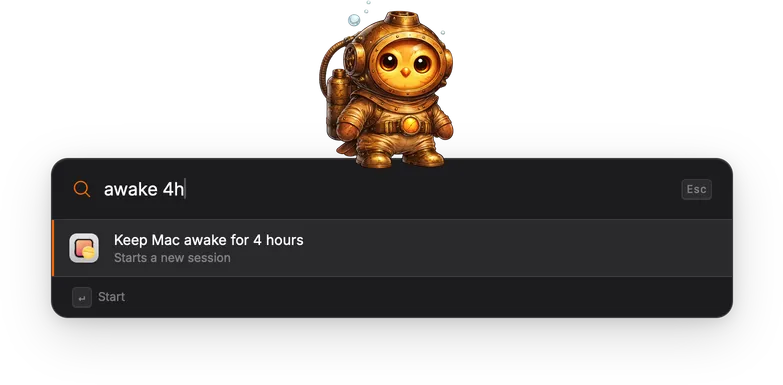
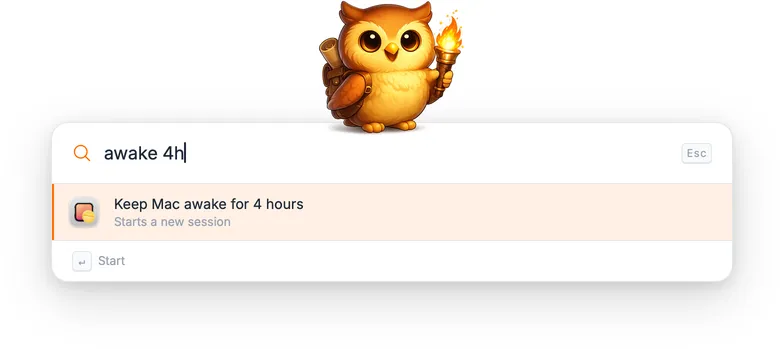
How to use
Section titled “How to use”Type awake to see the current state. With no session running, the result is
Keep Mac awake, and Enter starts a session with no time limit.
While a session is running, the result is End keep-awake session instead,
and the subtitle describes the running session, including how much time is
left. Press Enter to end it.
You don’t have to type the whole word. Any start of awake or amphetamine
that is at least three letters long works, so awa and amp both bring up the
gadget.
Setting a duration
Section titled “Setting a duration”Add a duration after the keyword to start a timed session:
| Query | Result |
|---|---|
awake 30m |
Keep awake for 30 minutes. |
awake 1h30m |
Keep awake for 1 hour 30 minutes. |
awake 45 min |
Keep awake for 45 minutes. |
amp 2 hours |
Keep awake for 2 hours. |
Durations use h and m in one word (2h, 90m, 1h30m), or a number
followed by a unit word. Minutes accept m, min, mins, minute, and
minutes. Hours accept h, hr, hrs, hour, and hours.
If a session is already running, the result reads Restart: Keep Mac awake for … and the subtitle describes the session it replaces. Selecting it ends the old session and starts the new one.
If Torchsnap can’t read the arguments after the keyword, the result shows a reminder of the syntax in place of the status line.
Letting the display sleep
Section titled “Letting the display sleep”By default the display stays on for the whole session. Add the word display
to let the display turn off while the system itself stays awake. This is useful
for long downloads or builds you don’t need to watch:
awake display: no time limit, display may sleepawake 2h display: two hours, display may sleep
Sessions started in Amphetamine
Section titled “Sessions started in Amphetamine”Awake also shows sessions you started in Amphetamine directly. Sessions tied to an Amphetamine Trigger, a running app, or a date show managed by Amphetamine in the subtitle. You can end them from the launcher, but the Trigger may start them again.
Awake checks Amphetamine’s state at most every 15 seconds. A session you start or end in Amphetamine itself can take that long to show up in the launcher. Changes made through the launcher show up right away.
Actions
Section titled “Actions”| Action | Shortcut | Description |
|---|---|---|
| Start | Enter | Start the session shown in the result and dismiss the launcher. |
| End session | Enter | End the running session and dismiss the launcher. |
If Amphetamine doesn’t respond or returns an error, the gadget shows an Amphetamine error result with the reason in the subtitle. This result has no action.
First use on macOS
Section titled “First use on macOS”Awake talks to Amphetamine through AppleScript. The first time you start or end a session, macOS asks whether Torchsnap may control Amphetamine. Allow it, or the command fails. If you declined by mistake, turn the permission back on in System Settings under Privacy & Security → Automation → Torchsnap.
If Amphetamine isn’t running when you start a session, macOS launches it for you.