
Settings
Open Settings by right-clicking the Torchsnap tray icon in the menu bar and choosing Settings…, or by searching for “Settings” in the launcher.
General
Section titled “General”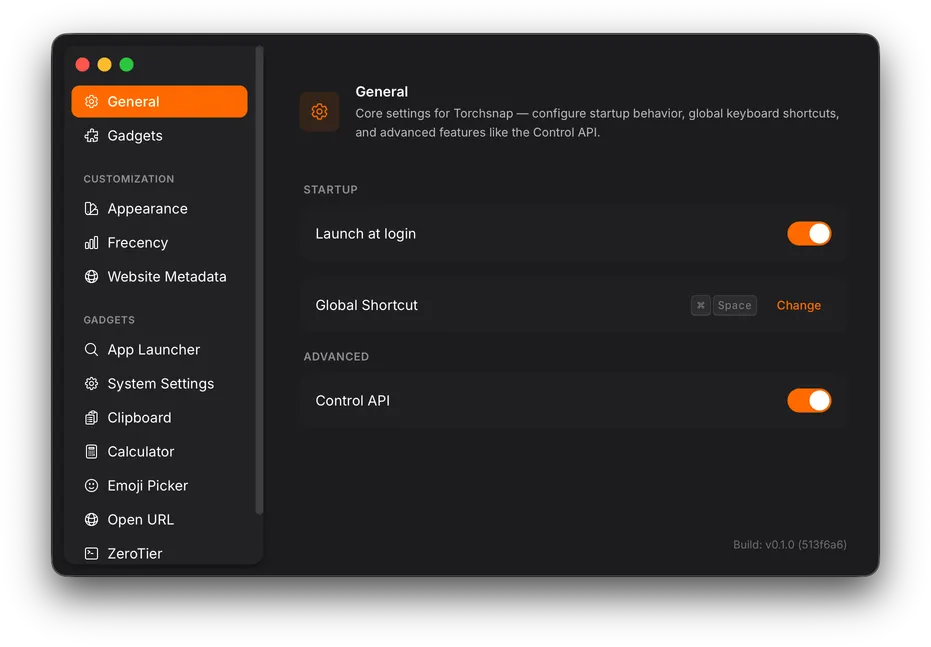
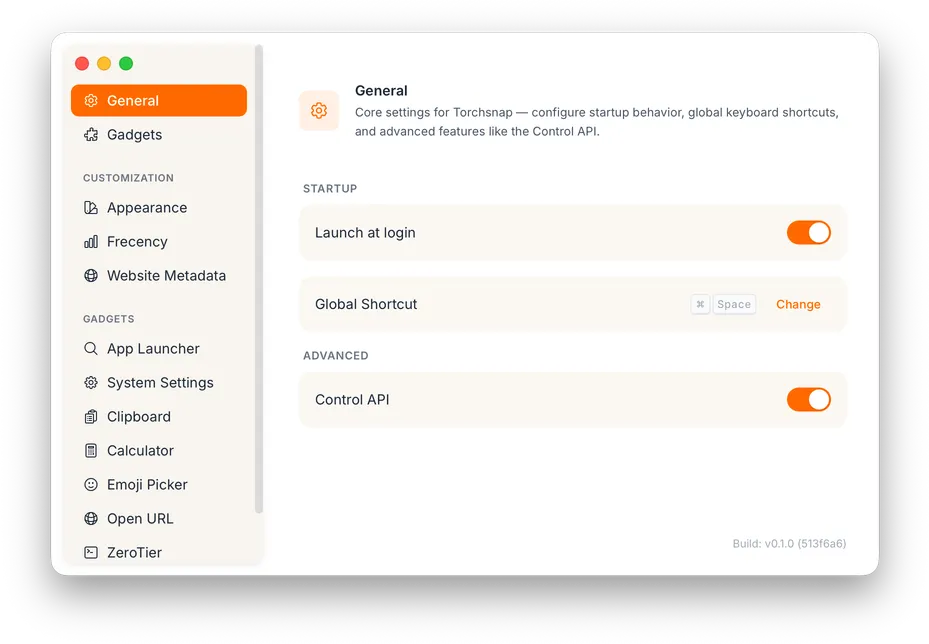
| Setting | Description |
|---|---|
| Launch at login | Start Torchsnap automatically when you log in. |
| Global Shortcut | The system-wide shortcut that opens the launcher. Click Change to record a new one. Default: Cmd+Shift+Space on macOS, Ctrl+Shift+Space on other platforms. On Linux under Wayland, global shortcuts may need to be registered through the desktop environment instead. See Keyboard Shortcuts for details. |
| Control API | Enable the JSON-RPC control socket so external programs can drive Torchsnap. Disabled by default. See Control API for details. |
Appearance
Section titled “Appearance”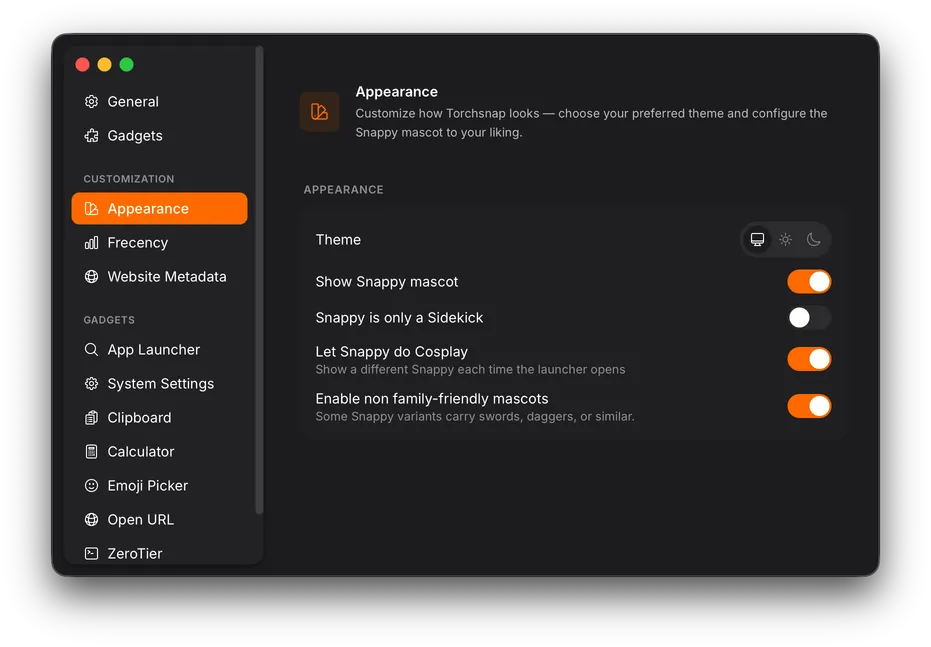
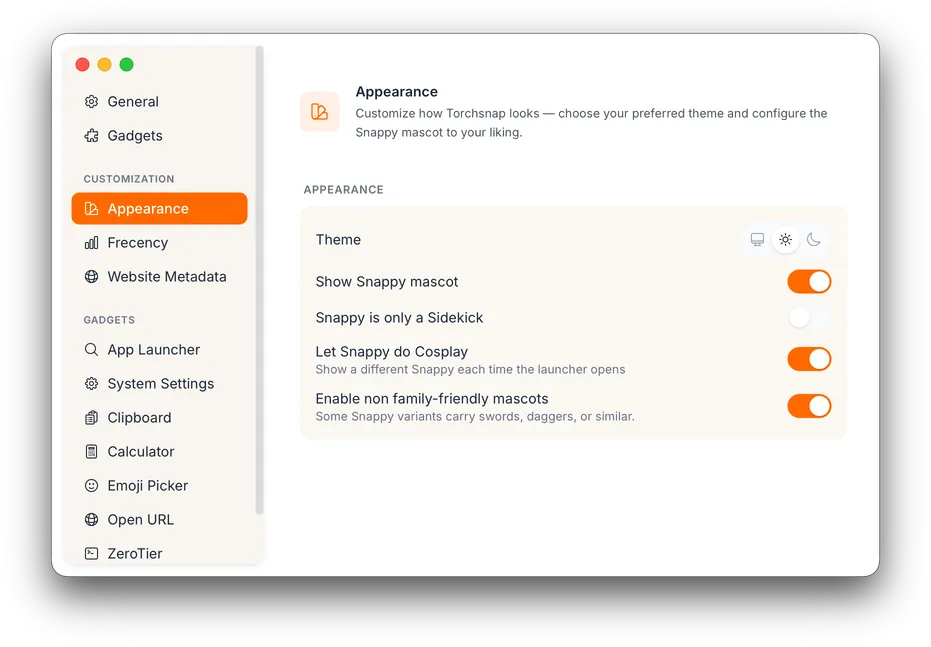
| Setting | Description |
|---|---|
| Theme | Choose between System, Light, and Dark. |
Snappy the mascot
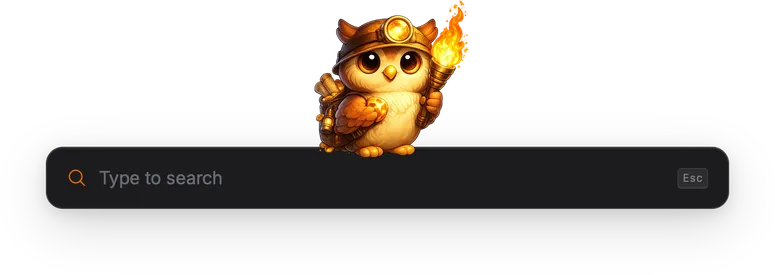
Section titled “Snappy the mascot”Snappy is the owl mascot that sits on top of the launcher. You can customize how Snappy appears, or hide it entirely.

| Setting | Description |
|---|---|
| Show Snappy mascot | Toggle Snappy on or off. |
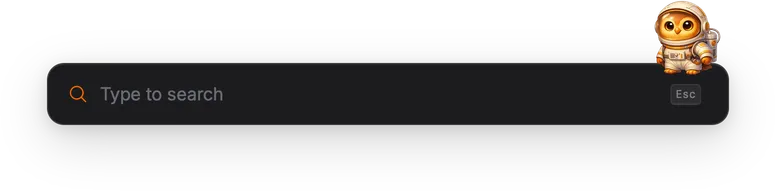
| Snappy is only a Sidekick | In the default mode, Snappy is centered above the search bar at full size. Enabling sidekick mode shrinks Snappy to half size and moves it to the right edge, keeping the launcher more compact. |
| Let Snappy do Cosplay | Snappy picks a random costume from over 150 hand-drawn variants each time the launcher opens. Costumes range from sci-fi and fantasy to pop culture references and seasonal outfits. Disable this to always show the original Snappy. |
| Enable non family-friendly mascots | Some Snappy variants carry props like swords, daggers, or lightsabers. Disable this to filter those variants from the random rotation. Only available when cosplay mode is enabled. |
In sidekick mode, Snappy moves to the right edge of the search bar at half size, still present but out of the way:

Frecency
Section titled “Frecency”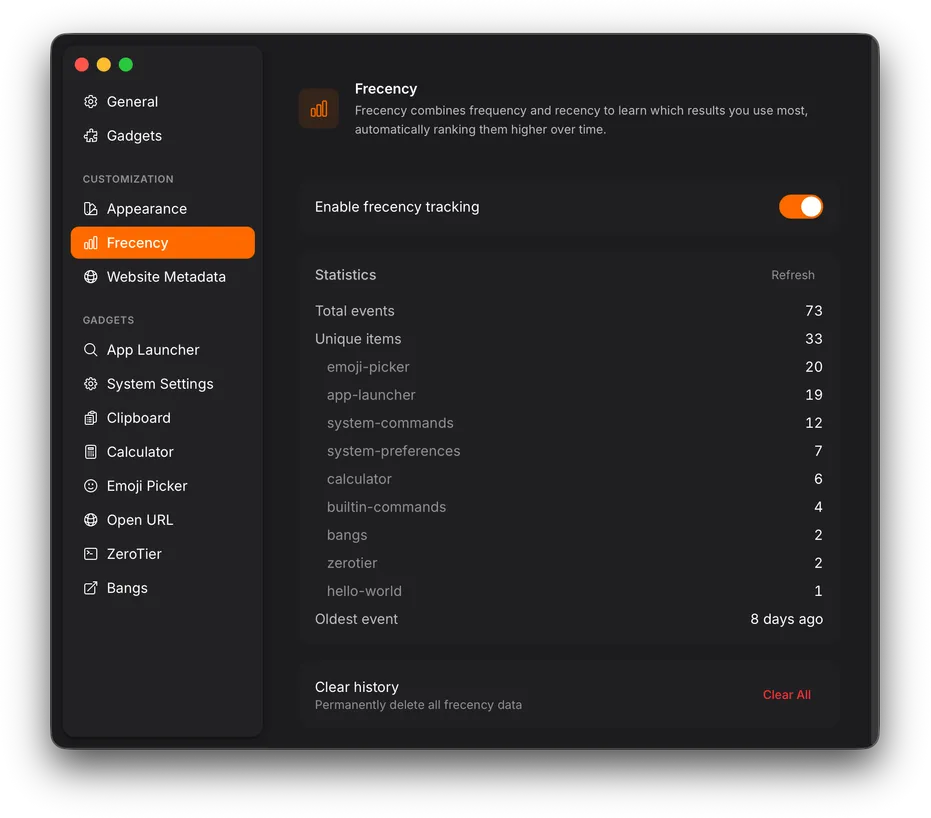
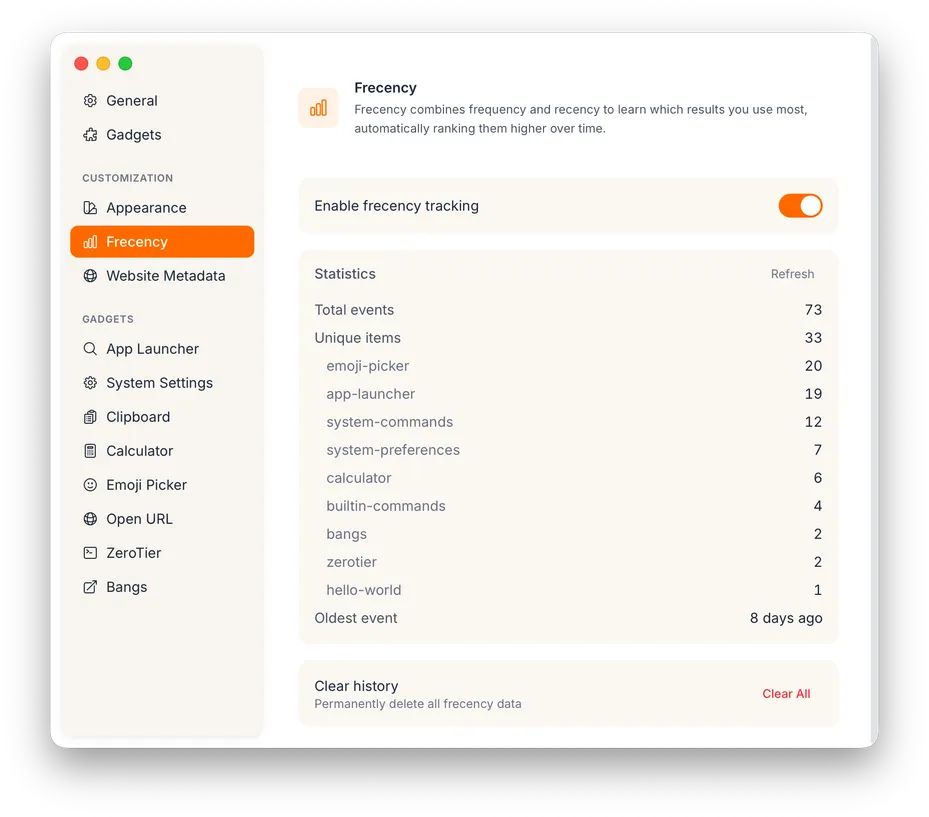
Frecency combines frequency (how often you use something) and recency (how recently you used it) into a single score. The more you launch a particular result, the higher it ranks, but recent usage counts for more than old usage, so the ranking naturally adapts as your habits change.
This means Torchsnap learns your preferences over time without any manual configuration. The apps and commands you rely on daily float to the top, while things you stopped using gradually fade back down.
Frecency data is stored locally and records which result was launched and when. If you prefer not to have that usage history stored on disk, you can disable frecency tracking entirely or clear the history at any time.
| Setting | Description |
|---|---|
| Enable frecency tracking | Toggle frecency ranking on or off. |
| Statistics | Shows how many events have been recorded, broken down by gadget. |
| Clear history | Permanently delete all frecency data and start fresh. |
Gadgets
Section titled “Gadgets”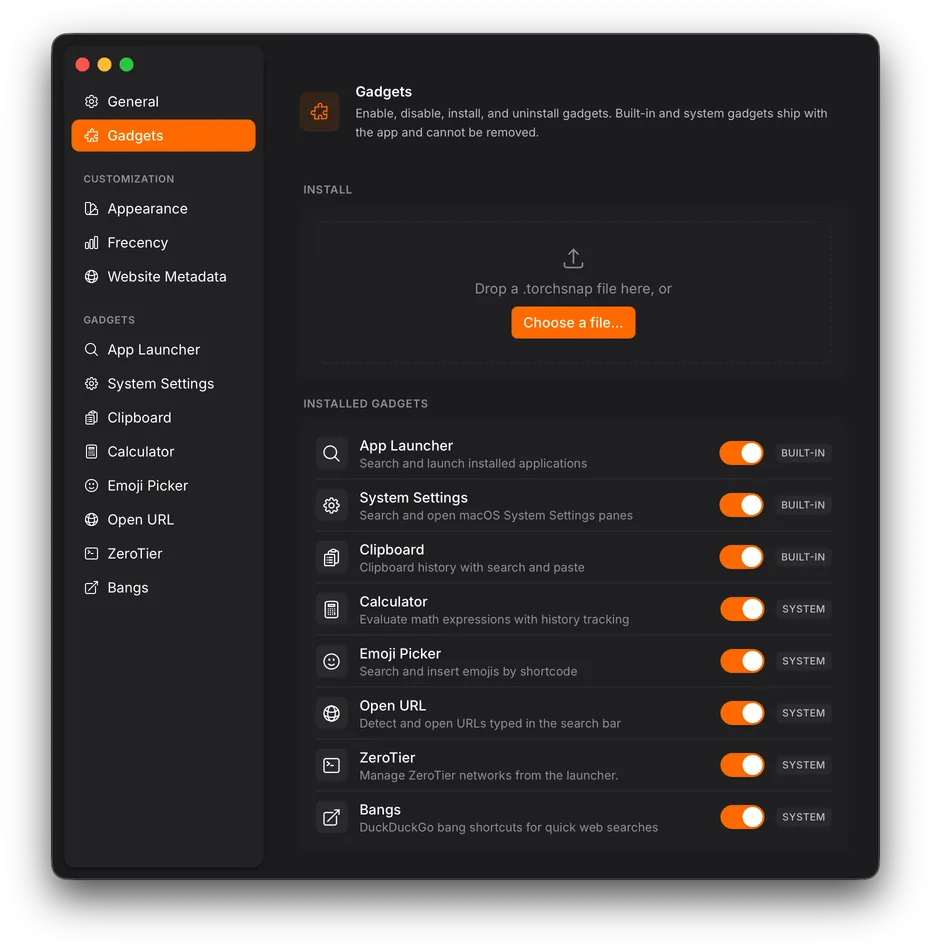
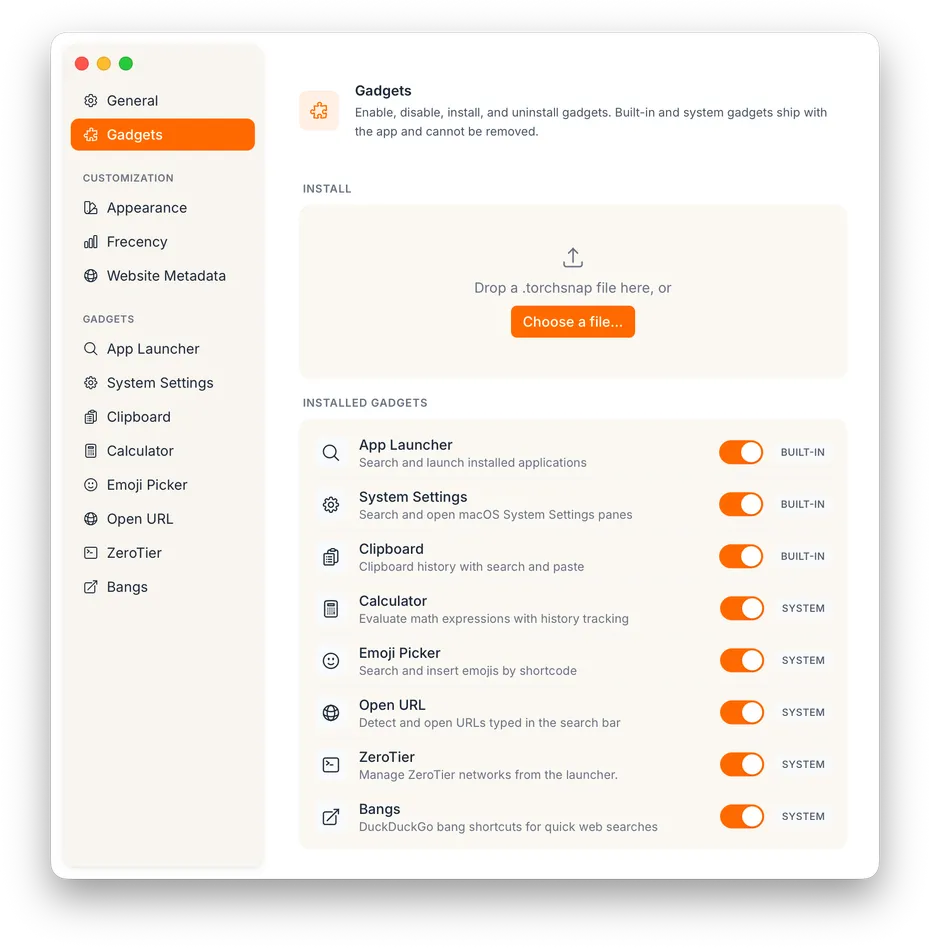
The Gadgets section lets you manage which gadgets are active.
| Action | Description |
|---|---|
| Enable / disable | Toggle individual gadgets on or off using the switch next to each one. |
| Install | Drop a .torchsnap file onto the drop zone or click Choose a file…. Installed gadgets require an app restart to take effect. |
| Uninstall | Remove user-installed gadgets. Built-in and system gadgets ship with the app and cannot be removed. |
Individual gadgets may have their own settings. These appear in the sidebar under the gadget’s name when available.
Settings file
Section titled “Settings file”All settings are stored in a JSON file at the platform’s application data directory:
| Platform | Path |
|---|---|
| macOS | ~/Library/Application Support/app.torchsnap/settings.json |
| Linux | ~/.local/share/app.torchsnap/settings.json |
| Windows | %APPDATA%\app.torchsnap\settings.json |
You generally don’t need to edit this file directly since the Settings UI covers everything. But it can be useful for backup, scripting, or troubleshooting.