
 torchsnap.app
Installing Gadgets
Gadgets that don’t ship with Torchsnap come as .torchsnap files. This page
shows how to install one, what Torchsnap tells you about it before anything
is installed, and how to update or remove it later. If you are new to gadgets,
start with What Are Gadgets?.
Open a gadget file
Section titled “Open a gadget file”You can hand a .torchsnap file to Torchsnap in several ways:
- Double-click it in Finder, or choose Open With → Torchsnap. Finder shows gadget files with their own document icon.
- Drop it onto the drop zone in Settings → Gadgets, or click Choose a file… there.
- Pass its path on the command line, for example
/Applications/Torchsnap.app/Contents/MacOS/torchsnap ~/Downloads/weather.torchsnap. If Torchsnap is already running, the file is handed to the running app.
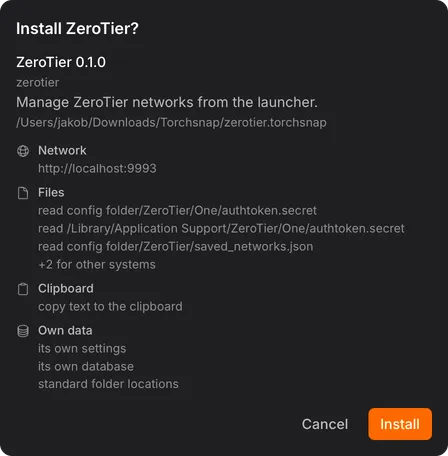
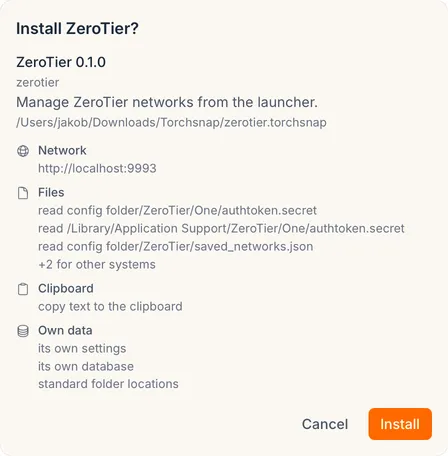
Whichever way you choose, Settings opens on the Gadgets section and shows a review of the gadget. Nothing is installed until you confirm it. If you open several files at once, you review them one after another.
Review what the gadget can do
Section titled “Review what the gadget can do”The review shows the gadget’s name, version, ID, and description, and the file it comes from. On macOS it also shows the website the file was downloaded from, when the app that downloaded it recorded one.
Below that, the review lists every permission the gadget asks for, grouped by what it touches:
| Group | What the gadget can do |
|---|---|
| Runs programs | Run specific programs on your computer, with the arguments listed. |
| Network | Connect to the listed websites, or to any website. Fetch website titles and icons. |
| Files | Read the listed files, open files and folders, or show files in the file manager. |
| Opens links | Open links of the listed kinds, such as https: links in your browser. |
| Clipboard | Copy text to the clipboard. |
| Own data | Keep its own settings and database, remember which of its results you pick most often, use the app icon cache, and look up standard folder locations. |
Torchsnap enforces this list while the gadget runs. If a gadget tries something in these groups that it didn’t ask for, the attempt is blocked.
Groups that reach beyond the gadget’s own data carry a Broad access label: running programs, opening arbitrary files and folders, and connecting to any website. Hover the label for a short explanation. These permissions aren’t wrong in themselves, since a gadget that keeps your computer awake has to run a program to do it, but they are the ones worth a second look.
Gadgets often list file paths for every operating system they support. Paths that can’t exist on your system are collapsed behind a +N for other systems toggle, so the list shows what the gadget can reach on your computer.
If the file isn’t a valid gadget, is larger than 16 MiB, or uses the ID of a gadget that ships with Torchsnap, the review says why and offers only Dismiss.
After you click Install, the gadget appears in the list with Installs on restart. See Apply changes with a restart.
Update a gadget
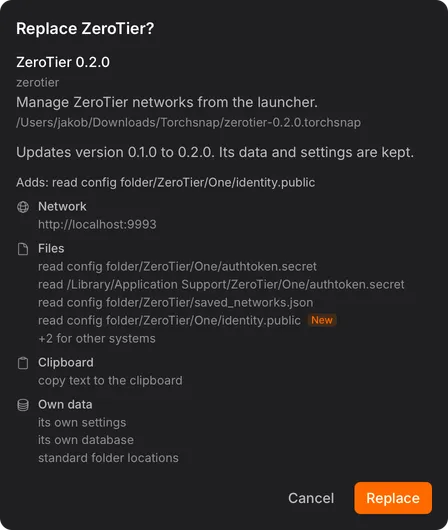
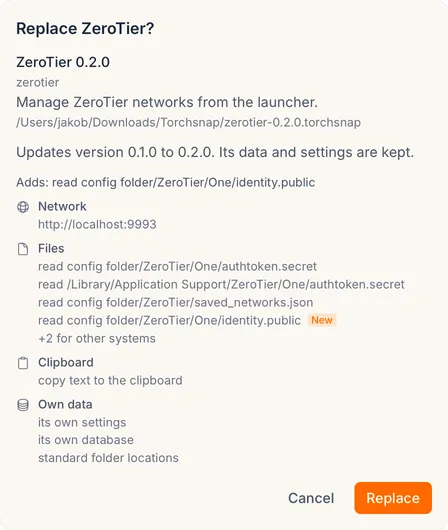
Section titled “Update a gadget”To update a gadget, open the file of the new version the same way. When a gadget with the same ID is already installed, the review asks whether to replace it and names both versions. The gadget’s data and settings are kept.
The permission list then marks what changed: permissions the installed version didn’t have are marked New, and permissions the new version no longer asks for are marked Removed. A line above the list sums up what the update adds and drops.
You can also install an older version. The review warns you first, because the kept data may already have been changed by the newer version.
Apply changes with a restart
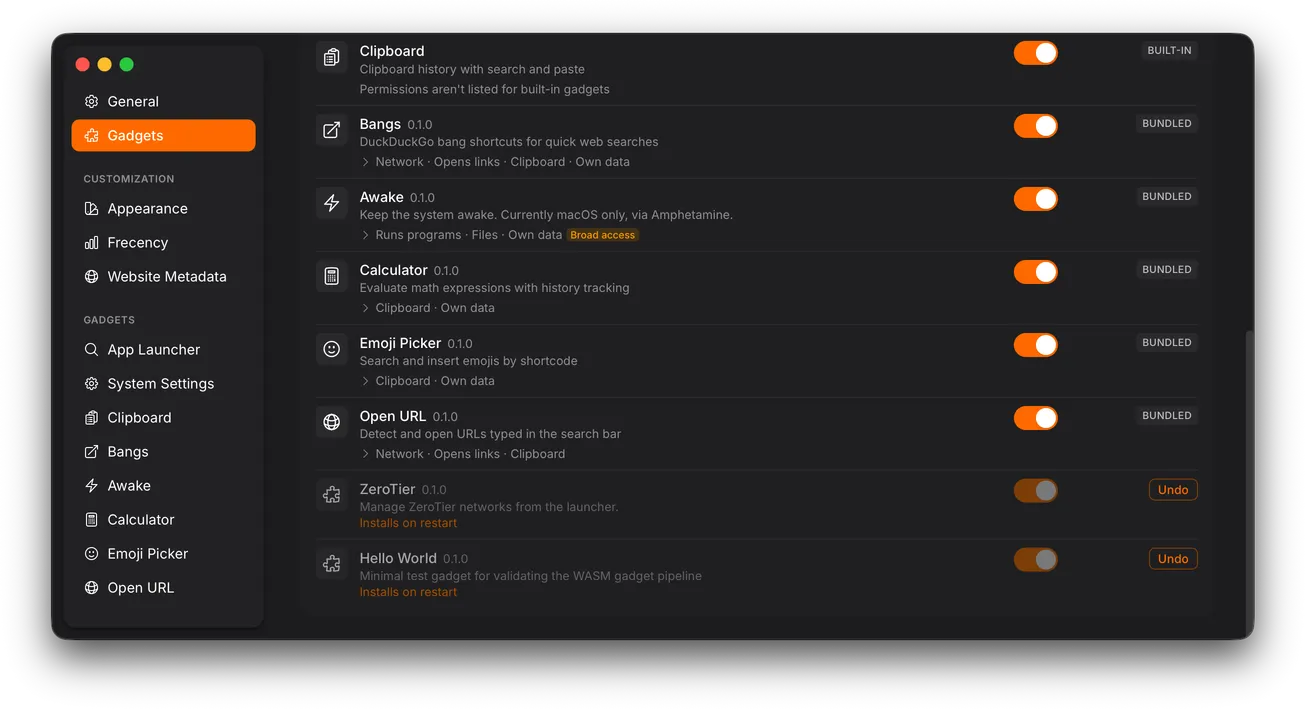
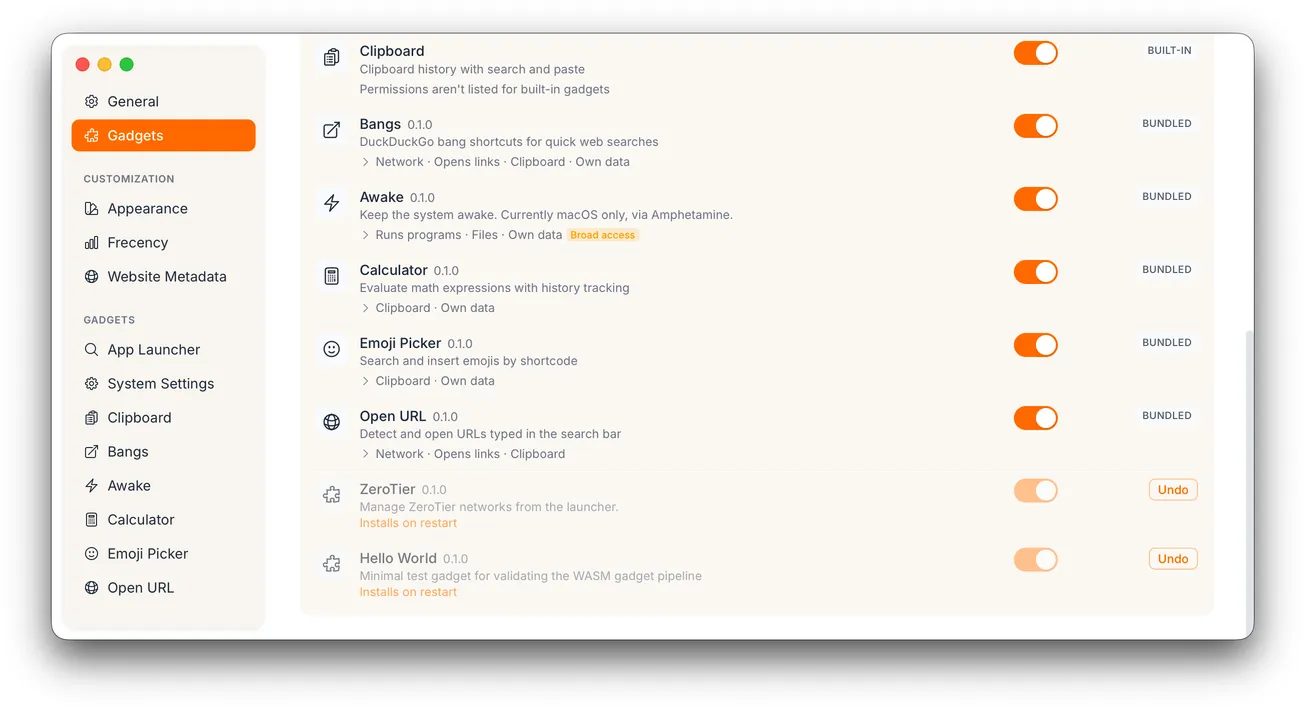
Section titled “Apply changes with a restart”Installs, updates, and uninstalls take effect the next time Torchsnap starts. Until then, the gadget’s row in Settings → Gadgets says what will happen:
| Note | Meaning |
|---|---|
| Installs on restart | A new gadget, loaded on the next start. |
| Updates to 1.2.0 on restart | The installed version keeps working until the restart. |
| Reinstalls 1.2.0 on restart | Installed again after an uninstall. The gadget starts with fresh data and settings. |
| Removed on restart | Uninstalled. The gadget keeps working until the restart. |
Rows with a pending change are dimmed, except for updates. Each one has an Undo button that takes the change back.
A bar above the list counts the waiting changes:
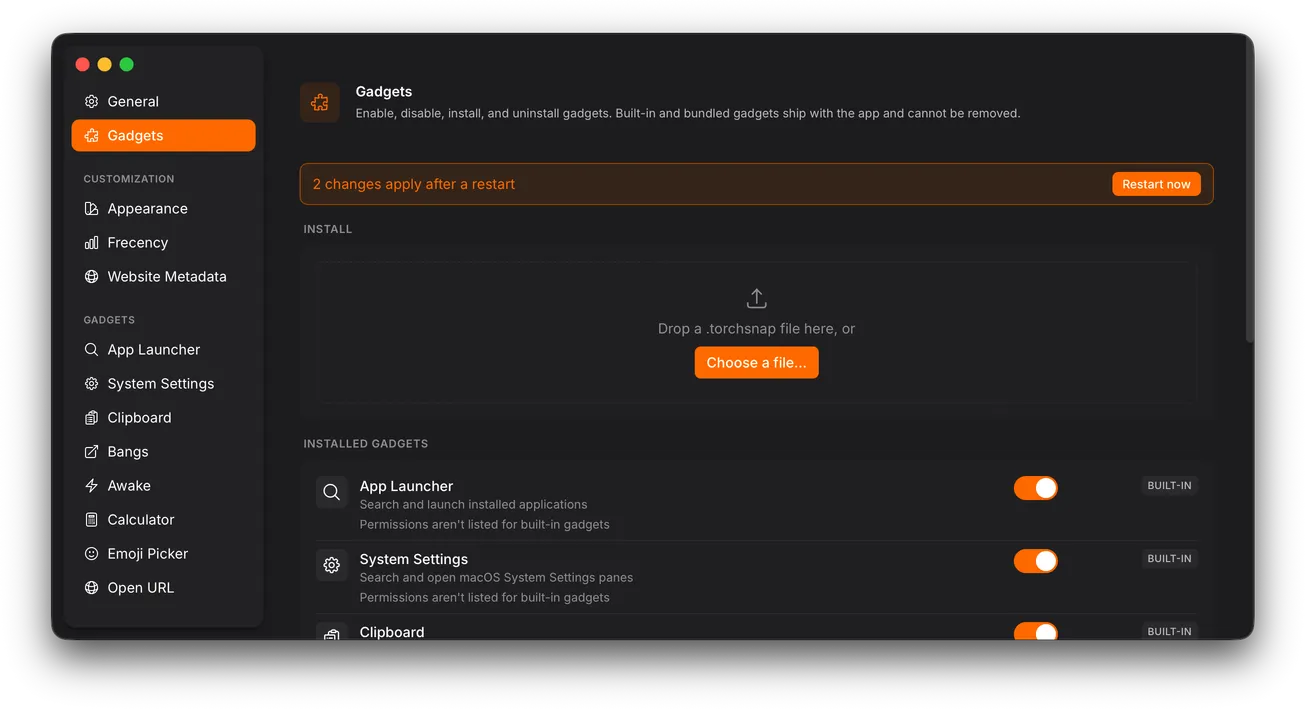
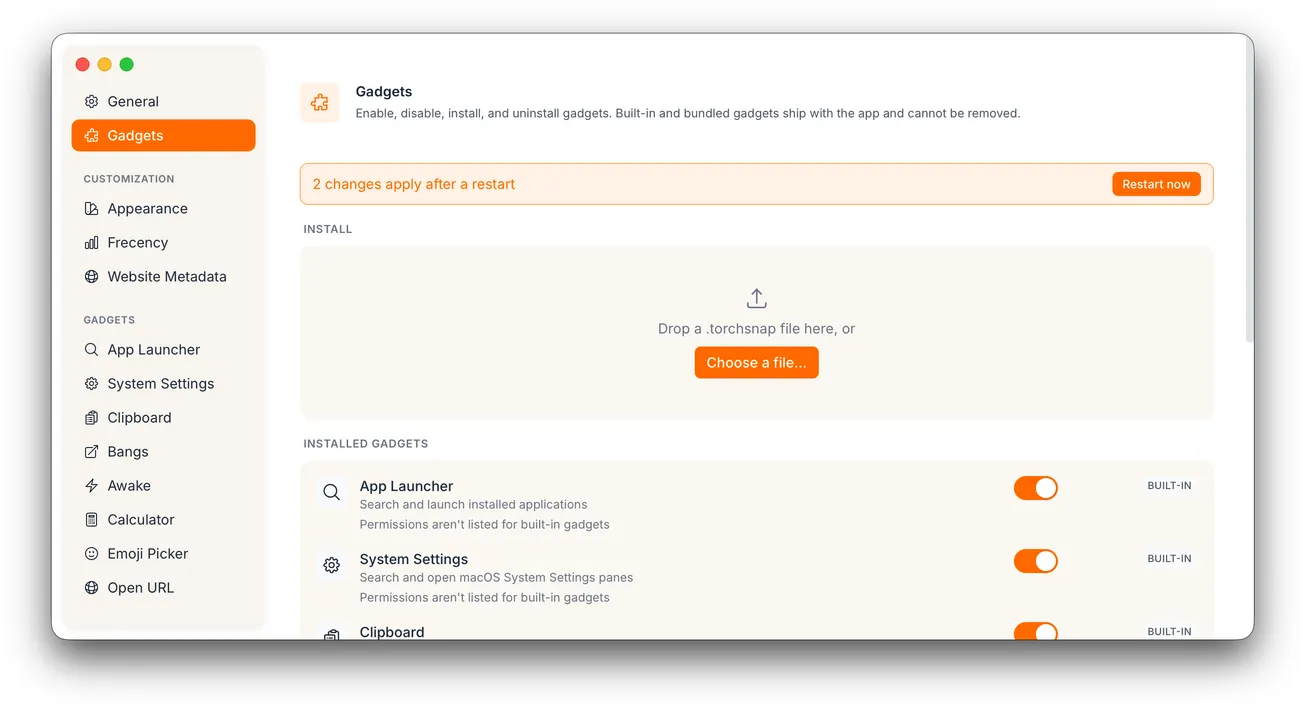
Click Restart now to apply them. Torchsnap restarts and opens Settings on the Gadgets section again, so you can see the result. The waiting changes are also applied whenever you quit and start Torchsnap yourself.
Uninstall a gadget
Section titled “Uninstall a gadget”Click Uninstall next to a gadget you installed. The gadget keeps working until the next start, and you can Undo the uninstall until then. When Torchsnap starts again, it deletes the gadget together with its data and settings, before any gadget loads.
Gadgets that ship with Torchsnap (marked Built-in or Bundled) can’t be uninstalled. They are updated together with Torchsnap. You can turn them off with their switch.
Only install gadgets you trust
Section titled “Only install gadgets you trust”Gadget files aren’t signed, so Torchsnap can’t tell who made a gadget. Install gadgets from people and websites you trust, and read the review before you click Install. The permission list shows everything the gadget is allowed to reach on your computer.