
Clipboard Manager
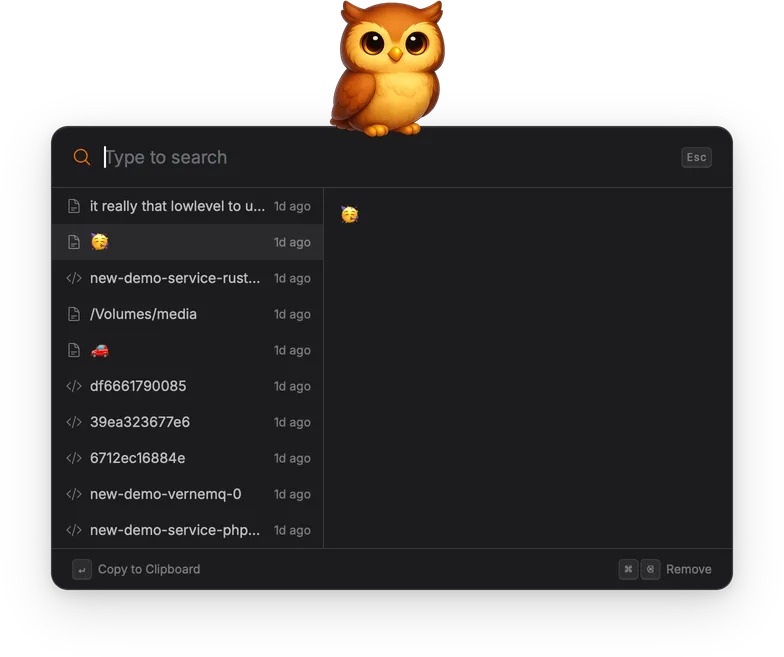
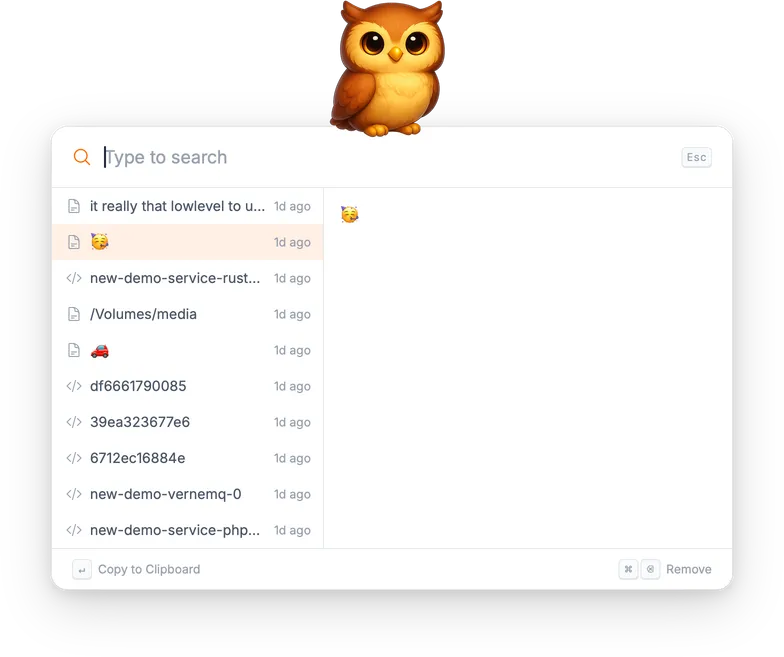
The Clipboard Manager monitors your system clipboard and keeps a searchable history of everything you copy. You can browse previous entries and paste them back at any time.
How to open
Section titled “How to open”There are two ways to access the clipboard history:
- From the launcher: search for “clipboard” or “paste” and select “Clipboard History”.
- Direct shortcut: press Cmd+Shift+V on macOS or Ctrl+Shift+V on other platforms to open the clipboard history directly. This shortcut can be changed in the gadget’s Settings.
How it works
Section titled “How it works”The clipboard is monitored continuously in the background. Every time you copy something — text, code, images, file paths — it is captured and stored locally. The history view shows all entries with a preview, and you can search through them using full-text search.
Selecting an entry shows its full content in the preview pane. Pressing Enter pastes it back to the clipboard with all original formats preserved and dismisses the launcher.
Actions
Section titled “Actions”| Action | Shortcut | Description |
|---|---|---|
| Copy to Clipboard | Enter | Paste the selected entry back to the clipboard. |
| Remove | Cmd+Backspace / Ctrl+Backspace | Delete the selected entry from history. |
Settings
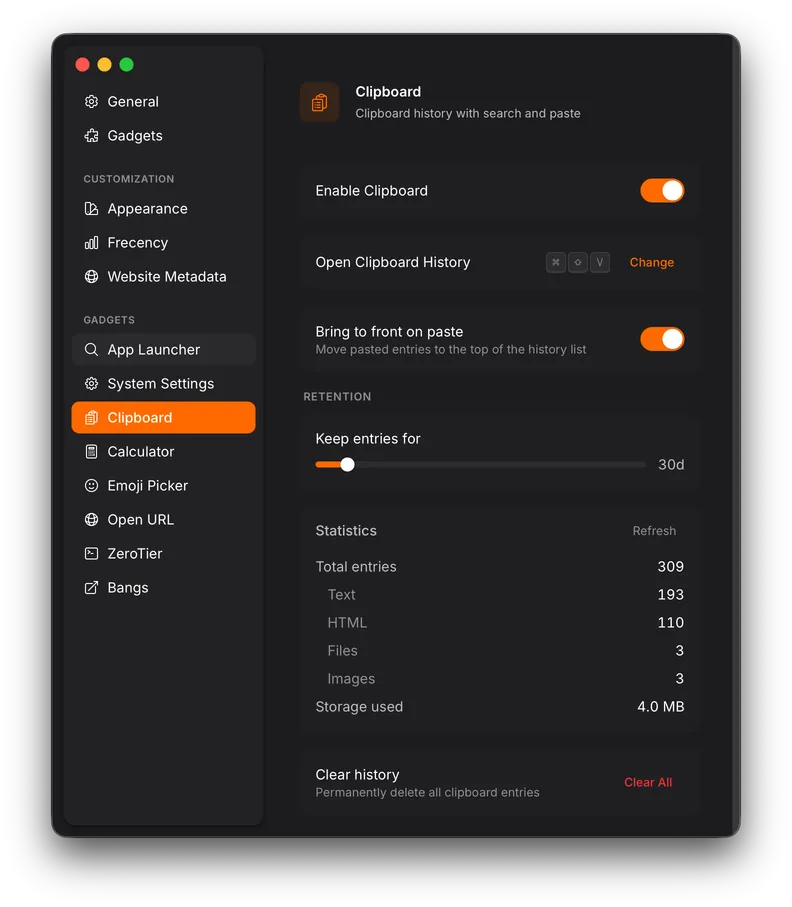
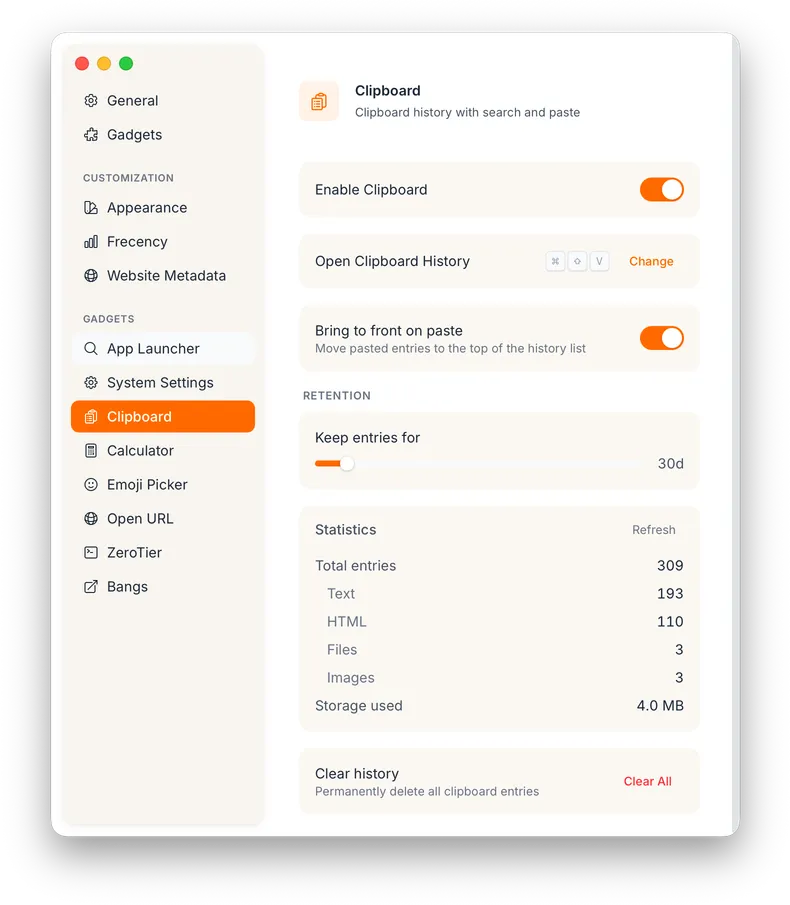
Section titled “Settings”The Clipboard Manager has its own settings panel in Settings:
| Setting | Description |
|---|---|
| Retention | How long entries are kept before automatic cleanup (default: 30 days). |
| Bring to front on paste | When enabled, pasting an entry moves it to the top of the history list (default: on). |
| Open Clipboard History shortcut | The global shortcut for direct access (default: Cmd+Shift+V). |