
 torchsnap.app
ZeroTier
The ZeroTier gadget lets you join, leave, and forget ZeroTier networks from the launcher, without opening the ZeroTier menu.
Installation
Section titled “Installation”You build the gadget from the Torchsnap repository. The development introduction lists the tools you need. In a checkout of the repository, run:
just build-gadget zerotierThis produces gadgets/zerotier.torchsnap. Double-click it, or drop it onto
the drop zone in Settings, confirm the review, and
restart Torchsnap. Installing Gadgets describes
each step.
The gadget talks to the ZeroTier service running on your computer, so you also need ZeroTier One installed and running.
Connecting to ZeroTier
Section titled “Connecting to ZeroTier”ZeroTier protects its local service with an auth token. The gadget looks for this token when it is enabled:
/Library/Application Support/ZeroTier/One/authtoken.secret, the system copy. It is usually readable only by the administrator, so this often fails.~/Library/Application Support/ZeroTier/One/authtoken.secret, a copy the official ZeroTier app creates for your user account.
If neither file is readable, paste the token into the gadget’s
settings. You can read it from the system copy with
sudo cat "/Library/Application Support/ZeroTier/One/authtoken.secret".
If something is wrong, a warning result appears below the other results. It
shows up only for searches about ZeroTier: when the query starts with
zerotier (zer is enough), is a network ID, or matches the name of a
remembered network.
| Result | What to do |
|---|---|
| ZeroTier token not configured | No token was found. Select the result to open the settings and paste the token. |
| ZeroTier authentication failed | ZeroTier rejected the token. Select the result to open the settings and check the token. |
| ZeroTier daemon not running | Start ZeroTier One. This result has no action. |
While one of these warnings is active, the gadget looks for the token and contacts ZeroTier again on your next ZeroTier search, at most every five seconds. Once ZeroTier is running, your networks show up without restarting Torchsnap.
How to use
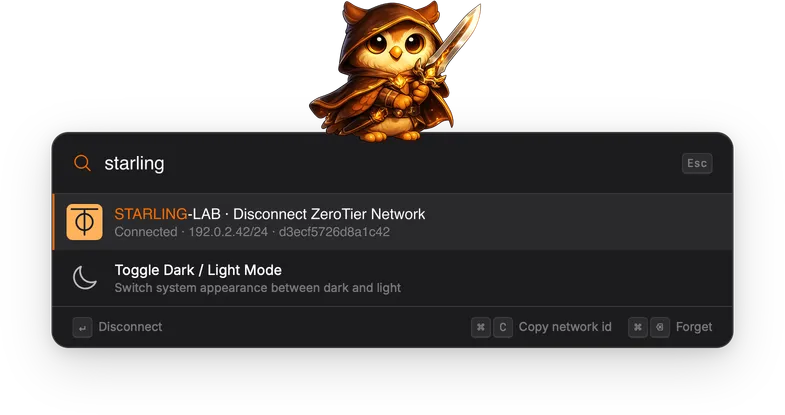
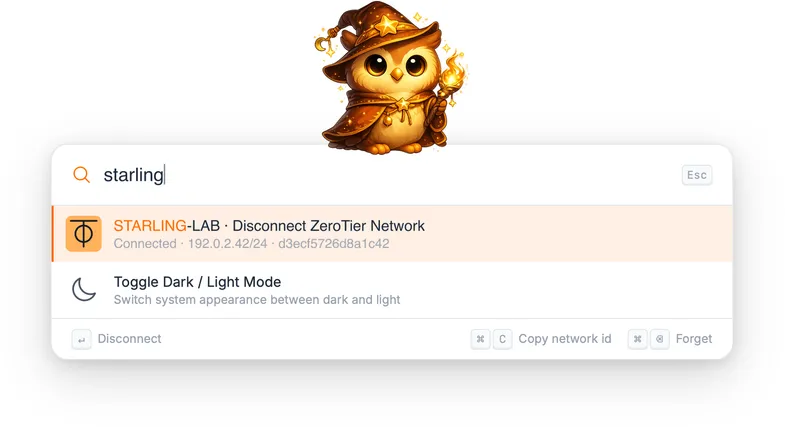
Section titled “How to use”Type part of a network’s name to find it. Each result shows the network’s name, what selecting it will do, and the network ID:
| State | Subtitle | Enter does |
|---|---|---|
| Connected | Connected and the IP addresses ZeroTier assigned to you. |
Disconnect |
| Joined, not connected | Why the connection isn’t up yet, for example Connecting…, Access denied, or Authentication required. |
Disconnect |
| Stored | Stored: you joined it before but are not a member right now. |
Connect |
Connected networks rank above joined ones, and joined networks rank above stored ones. Networks you pick often move up over time through frecency.
To join a network you have never used, paste its 16-character network ID. If
the gadget doesn’t know the ID yet, the result reads Join ZeroTier Network.
Press Enter to join. If the network is private, you still have to
authorize your device in the network’s controller, for example in ZeroTier
Central. Until then the result shows Connecting… or Access denied.
Remembered networks
Section titled “Remembered networks”The gadget keeps its own list of networks, so a network you disconnect from stays available as Stored for a later reconnect. The list contains every network ZeroTier has reported while the gadget was running. When the gadget is enabled, it also imports the networks saved by the official ZeroTier app.
Forget removes a network from this list. If you are still connected, the gadget disconnects first.
Actions
Section titled “Actions”| Action | Shortcut | Description |
|---|---|---|
| Connect / Join / Disconnect | Enter | Join or leave the network, depending on its state. |
| Copy network id | Cmd+C / Ctrl+C | Copy the 16-character network ID to the clipboard. |
| Forget | Cmd+Backspace / Ctrl+Backspace | Disconnect if needed and remove the network from the remembered list. Not available on Join results. |
Settings
Section titled “Settings”The settings panel has two sections.
Authentication shows the auth token field. When the gadget found the token
on its own, the field is disabled and reads Auto-detected. Otherwise, paste
the contents of authtoken.secret here. The gadget checks the new token right
away.
Remembered networks lists every network the gadget knows, with its ID, state, and when it was last seen.
| Setting | Description |
|---|---|
| Forget | Remove a single network from the list, disconnecting first if needed. |
| Clear all | Empty the whole list after a confirmation. This doesn’t disconnect you. Networks you are still joined to come back the next time the gadget sees them. |
| Re-import from ZeroTier UI | Import the networks saved by the official ZeroTier app again. Networks the gadget already knows are left unchanged. |